 +86 18030182217
 +86 18030182217
 sandydcsplc@gmail.com


Description
. Many products are not yet available. Please contact us to learn more about them
. In case of any inconsistency between the product model and the displayed picture, the model shall prevail. For specific product pictures, please contact us and we will take photos of the goods for confirmation
. We share multiple warehouses around the world, so please understand that it may take several hours to accurately return it to you. Of course, we will respond to your concerns as soon as possible
Product Core Brief
- Model: HIMA ELOPII (Engineering and Logic Programming Interface II)
- Brand: HIMA Paul Hildebrandt GmbH (Germany)
- Series: HIMA Safety Manager / HIMatrix Engineering Tools
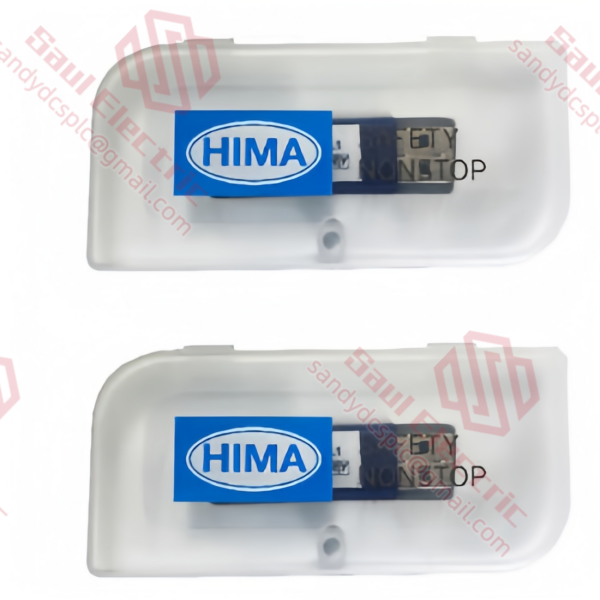
- Core Function: Windows-based engineering software for configuring, programming, and diagnosing HIMA H41q, H51q, and HIMatrix safety controllers. Condition: New Surplus (Software License + USB Dongle), not refurbished.
- Type: Engineering Workstation Software / Configuration Tool
- Key Specs: Supports SIL 3 / AK 6 | QMR (2oo4) Architecture | F-Bus/Profibus Safety Configuration
Key Technical Specifications
| Parameter Name | Specification Value |
|---|---|
| Software Name | HIMA ELOPII (often referred to as ELOP II) |
| Compatible Hardware | H41q, H51q (QMR Systems), HIMatrix (F3330, F6217, etc.) |
| Safety Integrity Level | Configures systems up to SIL 3 (IEC 61508) / AK 6 (DIN V 19250) |
| Architecture Support | QMR (Quadruple Modular Redundant), TMR, Dual, Single |
| Programming Language | CCF (Continuous Function Chart), Ladder Diagram (LD) |
| Communication Protocols | HIMA F-Bus, Profibus-DP, Modbus TCP/IP, OPC |
| Operating System | Windows 7 / 10 (Professional/Enterprise 64-bit) Subject to version |
| License Type | Node-locked (USB Dongle/Hardkey) or Floating License |
| Database | Integrated project database with version control |
| Diagnostic Features | Online monitoring, force variables, trend analysis, event logging |
| Certification | TÜV Certified Tool for Safety Instrumented Systems (SIS) |
| Current Version | V5.1, V6.0, or newer (Specific version subject to stock verification) |
Product Introduction
The HIMA ELOPII is the dedicated engineering software suite used to configure, program, and maintain HIMA safety control systems, specifically the H41q/H51q Quadruple Modular Redundant (QMR) platforms and the modular HIMatrix series. It allows engineers to develop safety logic in compliance with IEC 61508 (SIL 3) and DIN V 19250 (AK 6) standards using certified function blocks and continuous function charts (CCF). Unlike standard PLC programming tools, ELOPII enforces strict safety rules, manages redundancy synchronization, and handles the complex diagnostics required for high-availability safety systems in oil & gas, petrochemical, and power generation industries.This software is essential for anyone tasked with commissioning, modifying, or troubleshooting a HIMA safety system. It provides deep access to the controller’s status, allowing for online monitoring of all four CPU channels in a QMR system simultaneously. The version available is typically supplied with a hardware license key (USB dongle) or a verified software license file. Note: Specific version compatibility (e.g., V5.1 vs. V6.0) depends on the firmware of your existing HIMA hardware; always verify before installation.
Installation & Configuration Guide
Phase 1: Pre-Installation
⚠️ Safety First:
- Notify production that engineering work is starting; ensure no critical safety overrides are active during the software install.
- Verify Host PC: Ensure the workstation meets the OS requirements (typically Windows 10 Enterprise 64-bit for newer versions, Windows 7 for legacy V5.x).
- Disconnect Network: Temporarily disconnect the PC from the plant network to prevent accidental communication with live controllers during driver installation.
- Backup Existing Projects: If upgrading, export all existing ELOPII projects (.eld or .zip format) from the old workstation.
Tool Checklist:
- Original HIMA USB License Dongle (Hardkey)
- Installation Media (DVD or verified ISO image)
- License File (if soft license) or Activation Code
- Ethernet Cable (CAT5e or higher, shielded recommended)
- Administrator access to the Windows PC
- Smartphone (to photograph dongle ID and license stickers)
Backup Procedures:
- Photograph:
- The license dongle serial number.
- The software version sticker on the original media/case.
- Current IP configuration of the engineering station.
Phase 2: Removal (of Old Software/Drivers)
Steps:
- Uninstall Old Versions:
- Go to Control Panel > Programs and Features.
- Uninstall any previous versions of HIMA ELOPII, HIMA Drivers, or HIMA Communication Stack.
- Note: Reboot the PC if prompted.
- Remove Dongle Drivers:
- If replacing a corrupted installation, use the HIMA cleanup utility (if available) or manually remove the Sentinel/HASP drivers via Device Manager.
- Clean Registry (Advanced):
- Caution: Only if instructed by HIMA support. Remove leftover keys under
HKEY_LOCAL_MACHINE\SOFTWARE\HIMA.
- Caution: Only if instructed by HIMA support. Remove leftover keys under
- Inspect USB Ports:
- Test the USB port with another device to ensure it supplies sufficient power for the dongle.
⚠️ Crucial Notes:
- Conflict Risk: Installing multiple versions of ELOPII on the same PC can cause DLL conflicts. Ideally, dedicate one PC per major version (e.g., one for V5, one for V6).
- Antivirus: Temporarily disable real-time antivirus scanning during installation, as it may block the license driver installation.
Phase 3: Installation
Steps:
- Insert Dongle: Plug the HIMA USB license dongle into a direct USB port (avoid hubs if possible).
- Run Installer:
- Insert the media or mount the ISO.
- Run
Setup.exeas Administrator.
- Select Components:
- Choose “Full Installation” to include the Editor, Diagnostics, and Communication Drivers.
- Select the specific hardware support packages needed (e.g., H41q, HIMatrix).
- License Activation:
- Follow the wizard to detect the dongle.
- If using a soft license, browse to the
.licfile provided. - Verification: Ensure the license covers the specific hardware series you intend to configure.
- Configure Network:
- Set a static IP address on the PC’s Ethernet adapter. HIMA systems often use specific subnets (e.g., 192.168.1.x).
- Disable Windows Firewall for the HIMA communication ports (typically TCP/UDP 10000+ ranges, refer to manual).
Self-Checklist:
- Dongle detected by Windows (check Device Manager).
- Installation completed without error logs.
- PC rebooted successfully.
- Static IP configured correctly.
- Antivirus re-enabled with exceptions for HIMA directories.
Phase 4: Power-On & Testing
Pre-Power Checks:
- Verify the target HIMA controller (H41q/H51q) is powered and the Ethernet/F-Bus cables are connected.
- Ping the controller IP address from the command prompt (
ping <controller_ip>).
Connection Sequence:
- Launch ELOPII: Open the software from the desktop shortcut.
- Create/Open Project:
- Open an existing project or create a new one matching the hardware configuration.
- Go Online:
- Click the “Online” button (green plug icon).
- Select the correct communication path (Ethernet TCP/IP).
- Enter the Controller IP.
- Verify Connection:
- The software should read the hardware configuration.
- Check the “System Status” window. All four CPUs in a QMR system should show “OK” or “Run”.
- Monitor Variables:
- Force a test variable (if in Maintenance Mode) and observe the physical output or logic state.
- Check for any “Mismatch” alarms between the redundant channels.
⚠️ Troubleshooting:
- Dongle Not Found: Reinstall the Sentinel/HASP drivers. Try a different USB port.
- Connection Timeout: Check firewall settings. Ensure the PC and Controller are on the same subnet. Verify the controller is not in “Stop” mode due to a critical fault.
- Version Mismatch: If ELOPII says “Project version newer than software,” you need a newer version of ELOPII. If “Hardware firmware too old,” you may need to flash the controller (risky, consult manual).
Frequently Asked Questions (FAQ)
Q1: Can I install HIMA ELOPII on Windows 11?
A: It depends on the version. Older versions like ELOPII V5.1 were designed for Windows XP/7 and may have stability issues or driver conflicts on Windows 10/11 without specific patches or compatibility modes. Newer versions (V6.0 and above) generally support Windows 10 64-bit officially. Support for Windows 11 is often “subject to verification” with the specific service pack. In my experience, for critical safety engineering, I recommend using a dedicated laptop with Windows 10 Enterprise LTSC to minimize update-related breaks. Always check the HIMA “System Requirements” document for your specific version before installing.Q2: What is the difference between ELOPII and the newer HIMA Engineer?
A: ELOPII is the legacy engineering tool primarily for the H41q/H51q (QMR) and early HIMatrix systems. HIMA Engineer is the modern TIA Portal-style framework introduced for newer HIMatrix and Planar4 systems. While there is some overlap, if you are maintaining an existing H41q system (common in refineries), you must use ELOPII. You cannot open an ELOPII project directly in HIMA Engineer without a migration process, which is not always seamless. If your plant has H41q racks, stick with ELOPII.Q3: My USB dongle is lost/damaged. Can I run the software without it?
A: No. HIMA ELOPII is strictly protected by a hardware license (hardkey) or a locked soft license. The software will start in “Demo Mode” or not at all without a valid license. Demo mode usually allows viewing but prevents downloading logic to the controller or saving changes. If you lose the dongle, you must contact HIMA or an authorized distributor with proof of purchase to request a replacement. This process can take weeks, so keep the dongle in a safe, designated location when not in use.Q4: Why does the software show “CPU Mismatch” alarms on my H41q system?
A: The H41q uses a Quadruple Modular Redundant (2oo4) architecture. ELOPII constantly compares the execution results of all four CPU channels. A “Mismatch” alarm means one or more channels calculated a different result for the same logic scan. This could be due to:
- Hardware Fault: A failing CPU module or memory bit flip.
- Timing Issue: Extremely rare, but possible if the scan time is overloaded.
- Online Modification: Changing logic while the system is running without proper synchronization.
If you see this, do not ignore it. Check the detailed diagnostic buffer in ELOPII to identify which channel (A, B, C, or D) is deviating. Often, the system will automatically isolate the bad channel, but it needs investigation.
Q5: Is this software version compatible with my firmware?
A: This is the most common pitfall. ELOPII versions are tied to firmware releases. For example, ELOPII V5.1 might support firmware up to V3.x, while V6.0 is needed for V4.x+. If you try to go online with a mismatched version, you will get a “Protocol Error” or “Unsupported Hardware” message. Before buying or installing, check the firmware version of your H41q/H51q CPU modules (visible on the front display or via the old software). Then, cross-reference with the HIMA compatibility matrix. If unsure, send us your CPU firmware version, and we can verify if this software copy will work.Q6: Can I backup my project without the original dongle?
A: Yes, you can open and view projects (if you have a viewer license or the dongle is present for opening). However, to save changes or download to the controller, the dongle must be present. A best practice I enforce: always keep a “Read-Only” backup of the latest logic on a secure server or USB drive without license dependency (exported as PDF or non-editable archive), so you can at least view the logic for troubleshooting if the dongle is lost during an emergency. But for full engineering, the dongle is mandatory.
- WhatsApp: +86 18030182217
- Email: sandydcsplc@gmail.com
- Phone: +86 18030182217
- Wechat: +86 18030182217
- Website: www.xiongbaparts.com