 +86 18030182217
 +86 18030182217
 sandydcsplc@gmail.com


Description
Product Core Brief
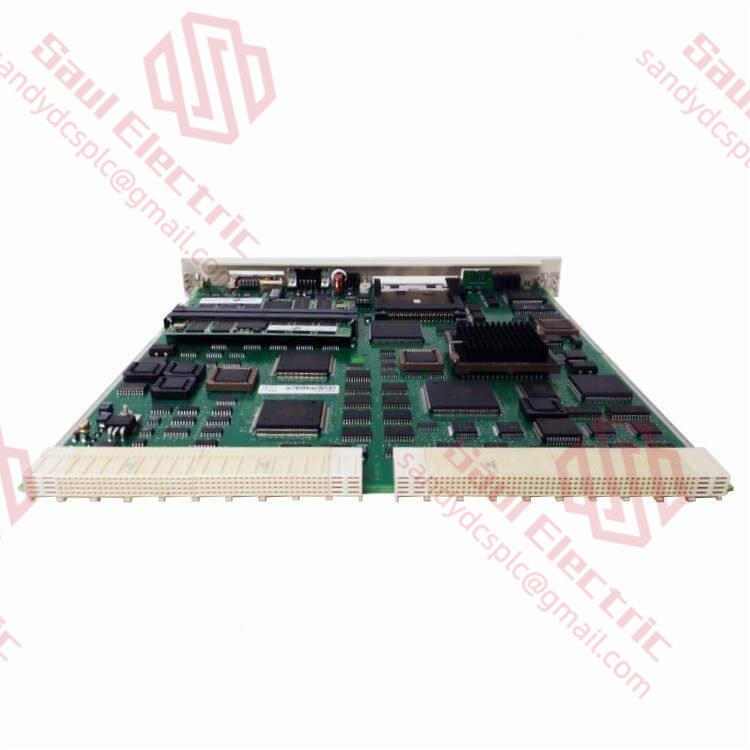
- Model: ABB PM510V16 3BSE008358R1
- Brand: ABB (Switzerland-Sweden)
- Series: AC500 V2 Programmable Logic Controller (PLC) Family
- Core Function: Central processing unit for mid-to-large automation tasks, executing complex logic with expanded memory. Condition: New Surplus, not refurbished.
- Type: CPU Module (Processor)
- Key Specs: 16 MB User Memory | 2x Ethernet Ports (Switch) | CoDeSys V2.3 Runtime
Key Technical Specifications
| Parameter Name | Specification Value |
|---|---|
| Model Number | PM510V16 |
| Order Code | 3BSE008358R1 |
| Processor Type | 32-bit RISC |
| User Memory | 16 MB (Program + Data) |
| Communication Interfaces | 2x RJ45 Ethernet (10/100 Mbps, Internal Switch), 1x RS-232/RS-485 (COM1) |
| Supported Protocols | Modbus TCP, EtherNet/IP, FTP, HTTP, SNMP |
| Programming Standard | IEC 61131-3 (via CoDeSys V2.3) |
| Max Local I/O | Up to 64 local modules (via internal bus) |
| Expansion | Supports up to 3 communication coprocessors (CM5xx) |
| Real-Time Clock (RTC) | Integrated (Super-capacitor backed, approx. 7 days) |
| Operating Temperature | 0°C to +60°C (Horizontal mount), 0°C to +50°C (Vertical) |
| Power Consumption | Approx. 3.8 W (5 V DC from backplane) |
| Dimensions (W×H×D) | 45 mm × 90 mm × 115 mm (1 TE width) |
| Weight | 0.25 kg |
| Certification | CE, UL, cULus, GL, DNV |
Product Introduction
The ABB PM510V16 3BSE008358R1 is a high-performance CPU module from the AC500 V2 PLC family, distinguished by its 16 MB of user memory—double that of the standard PM510V08 model. This expanded memory capacity makes it ideal for applications involving large data logging, complex mathematical functions, or extensive I/O counts that would overflow an 8 MB controller. Like its sibling, it features dual Ethernet ports with an integrated switch for daisy-chain networking and runs the robust CoDeSys V2.3 runtime environment.Engineered for reliability in harsh industrial environments, the PM510V16 supports a wide range of communication protocols including Modbus TCP and EtherNet/IP out of the box. Its deterministic scan times and flexible expansion capabilities (supporting up to 64 local I/O modules) made it a workhorse for water treatment plants, material handling systems, and packaging lines commissioned between 2008 and 2016. As the AC500 V2 platform transitions to legacy status, securing genuine surplus units like this is critical for maintaining system integrity without undertaking a costly full-platform migration to AC500 V3.
Installation & Configuration Guide
Phase 1: Pre-Installation
⚠️ Safety First:
- Notify production of the planned downtime. The PLC will cease execution during replacement.
- Verify safe state: Ensure all motors are stopped, valves are in safe positions, and energy sources are isolated.
- Disconnect power: Turn off the 24 V DC supply to the entire PLC rack. Wait 30 seconds for capacitors to discharge.
- Ground yourself: Put on an anti-static wrist strap connected to the cabinet ground.
Tool Checklist:
- Anti-static wrist strap + mat
- Small flathead screwdriver (for terminal blocks if needed)
- Laptop with Ethernet port and CoDeSys V2.3 (or Control Builder Basic V2.3) installed
- Ethernet cable (CAT5e shielded)
- Smartphone (to photograph wiring and DIP switches)
- Label maker (for tagging cables)
Backup Procedures:
- Photograph:
- The exact slot position (always Slot 1, leftmost).
- Ethernet cable connections (Port 1 vs. Port 2).
- Any DIP switch settings on the front panel.
- Serial number of the old unit for asset tracking.
- Software Backup: If the old CPU is still partially functional, attempt an “Upload” from the PLC to save the latest logic before removal.
Phase 2: Removal
Steps:
- Label Cables: Tag the Ethernet cables connected to Port 1 and Port 2. Note which one comes from the HMI/SCADA and which goes to the next device.
- Disconnect Cables: Unplug the RJ45 connectors. Inspect the clips; broken clips cause intermittent comms.
- Release Module:
- Locate the locking lever at the bottom of the PM510V16.
- Push the lever down (or out) to release the latch.
- Extract Module:
- Grasp the faceplate firmly.
- Pull straight out perpendicular to the backplane. Do not rock side-to-side, as this bends the 96-pin bus connector.
- Inspect Backplane: Check the female connector in the base unit for bent pins or dust. Clean with compressed air if necessary.
⚠️ Crucial Notes:
- SD Card: The PM510V16 often utilizes an SD card for project storage and data logging. If an SD card is present in the old unit, remove it carefully. You must insert this same card into the new CPU to retain the program and historical data.
- Slot Position: In AC500 systems, the CPU must always be in the leftmost slot (Slot 1). Moving it will cause a system fault.
Phase 3: Installation
Steps:
- SD Card Transfer: Insert the SD card from the old unit into the new PM510V16. Ensure it clicks into place. Note: If the old card is corrupted, you will need to download the program from your laptop.
- Insert Module:
- Align the new CPU with the guide rails of Slot 1.
- Push firmly and evenly until the backplane connector seats fully.
- Engage the locking lever until it clicks.
- Reconnect Cables:
- Plug Ethernet cables back into the correct ports.
- Tip: Maintain consistency: Cable from controller goes to Port 1, cable to next device goes to Port 2.
- Check Neighbors: Ensure adjacent power supply and I/O modules are tightly seated against the CPU. Gaps cause bus communication errors.
Self-Checklist:
- CPU locked in Slot 1.
- SD card inserted correctly.
- Ethernet cables secured with intact clips.
- No tools left inside the rack.
- 24 V DC polarity verified at the power supply.
Phase 4: Power-On & Testing
Pre-Power Checks:
- Measure 24 V DC at the power supply terminals.
- Verify no short circuits between 24 V and 0 V.
Power-On Sequence:
- Energize: Turn on the 24 V DC supply.
- Observe LEDs:
- RUN (Green): Flashes during boot, becomes Solid Green when running.
- ERR (Red): Solid or flashing indicates hardware fault, missing SD card, or program error.
- COM (Yellow/Orange): Flashes when Ethernet traffic is detected.
- Connect Software:
- Open CoDeSys V2.3 or Control Builder Basic.
- Set your PC IP to the same subnet as the PLC.
- Go “Online”.
- Verify Program:
- If the SD card was used, the PLC should auto-load the program and run.
- If no SD card or if the card is blank, download the project from your laptop.
- Functional Test:
- Toggle a digital output via the software force table. Verify physical activation.
- Ping the PLC to verify Ethernet stability.
- Monitor diagnostic buffer for “Watchdog” or “Bus Error” messages.
⚠️ Troubleshooting:
- Solid Red ERR: Often indicates the program on the SD card is corrupted or incompatible with the firmware version. Try formatting the SD card (FAT16) and re-downloading the project.
- No COM Light: Check Ethernet cable continuity. Ensure the PC firewall isn’t blocking CoDeSys traffic.
- PLC Won’t Start: Check if the “Run/Stop” command in software is set to “Stop”. Some configurations require a specific “Warm Start” command after a CPU swap.
Frequently Asked Questions (FAQ)
Q1: What is the difference between PM510V16 and PM510V08?
A: The primary difference is memory capacity. The PM510V16 (3BSE008358R1) provides 16 MB of user memory, whereas the PM510V08 offers only 8 MB. Physically, they are identical. You can directly replace a V08 with a V16 without any hardware changes; the extra memory simply remains available for future expansion. However, replacing a V16 with a V08 is risky; if the existing program exceeds 8 MB, the system will fail to load or run. Always check your project size in CoDeSys before downgrading.Q2: Can I use CoDeSys V3.x to program this module?
A: No. The PM510V16 runs exclusively on the CoDeSys V2.3 runtime kernel. It is not compatible with the CoDeSys V3.x engine used in newer AC500 V3 or PM500-V3 series. You must use Control Builder Basic V2.3 or the standalone CoDeSys V2.3 SP2/SP3 for programming. Attempting to compile a V3 project for this hardware will result in compatibility errors.Q3: Does this CPU support hot-swapping?
A: No. The AC500 V2 series (including PM510V16) does not support hot-swapping of the CPU. Removing the module while powered will cause an immediate loss of control and may damage the backplane connector due to arcing. Always power down the entire 24 V DC supply before removing or inserting the CPU.Q4: My new CPU shows a red “ERR” light. Do I need to download the program?
A: Yes, likely. While the PM510V16 has non-volatile memory, a replacement unit from surplus stock may be blank or contain a demo project.
- Insert the SD card from your old unit (if available and healthy).
- Power cycle.
- If the error persists, connect via Ethernet and download the saved project file from your engineering station.
- Ensure the “Hardware Configuration” in your software matches the physical rack exactly (same I/O modules in same slots).
Q5: Is the 3BSE008358R1 obsolete? What is the replacement?
A: The AC500 V2 platform is considered “Classic” or “Legacy” by ABB, with the V3 platform being the current standard. While ABB still provides limited support, new production of V2 CPUs has slowed. The PM510V16 is not directly interchangeable with V3 CPUs (like PM511 or PM512) due to different backplane pinouts and software kernels. If you are expanding an existing V2 system, sticking with surplus V2 units like this is the most practical solution. For new designs, ABB recommends the AC500 V3 series, but migrating requires a full hardware and software overhaul.Q6: How do I backup the program if the CPU is failing?
A: If the CPU is still communicating:
- Connect your laptop via Ethernet.
- Open CoDeSys V2.3.
- Go Online.
- Select “Project” -> “Save As” to pull the logic from the CPU to your PC.
If the CPU is dead but has an SD card, remove the card and read it using a standard SD reader. The project files are usually stored in a readable directory structure. If neither works, you must rely on your last known good backup from your engineering archive.
- WhatsApp: +86 18030182217
- Email: sandydcsplc@gmail.com
- Phone: +86 18030182217
- Wechat: +86 18030182217
- Website: www.xiongbaparts.com